In-Person Visit Workflow
This guide will take you through a full in-person visit in the Lasso platform: from finding the participant on the Site Dashboard, to launching the visit, entering data, and marking it complete. It also covers the Participant's Visit Data table, where you can look up and review visit records.
Site Dashboard Overview#
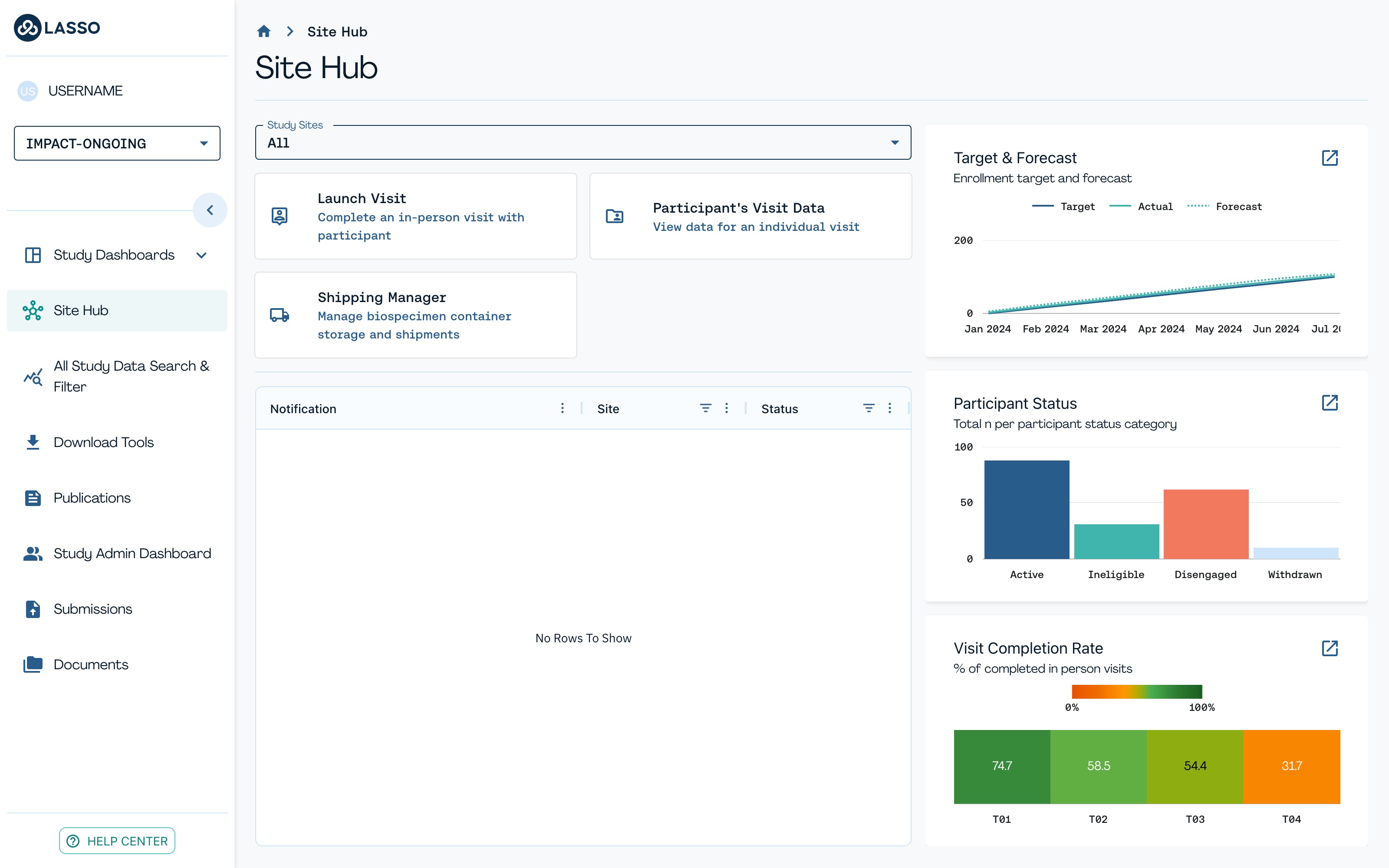
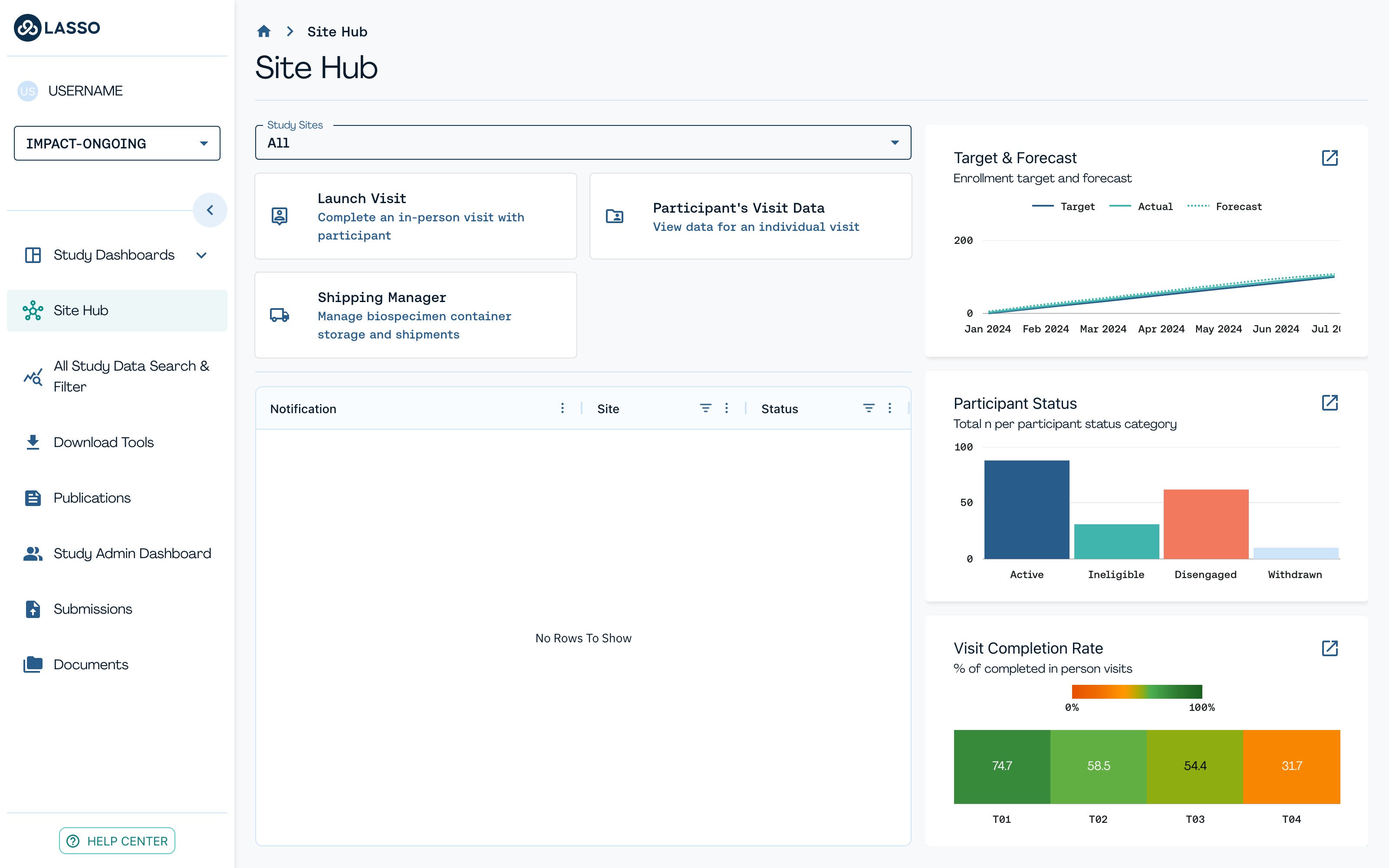
The Site Dashboard is where the visit starts. It lists your site's participants, their visit progress, and any notifications that require staff action.
Key areas of the dashboard#
- Site Hub navigation: Find it in the left sidebar under Site Hub > Site Dashboard.
- Action tiles: Quick launches for Launch Visit, Participant's Visit Data, and Shipping Manager.
- Notifications table: A live list of open items (e.g., escalations) by participant and site, with status.
- Target & Forecast chart: Enrollment target against actual and forecast over time.
- Participant Status chart: A bar chart of participant counts by status (Active, Ineligible, Disengaged, Withdrawn).
- Visit Completion Rate: The percentage of completed visits, broken out by visit (V01, V02, V03).
Launch & Complete In-Person Visit#
This section takes you through a single visit start to finish: confirming the participant's identity, administering the required measures, and marking the visit complete.
Starting the visit#
From the Site Dashboard, click the Launch Visit tile to begin an in-person visit.
STEP 1 - Scan the Participant's QR Code#
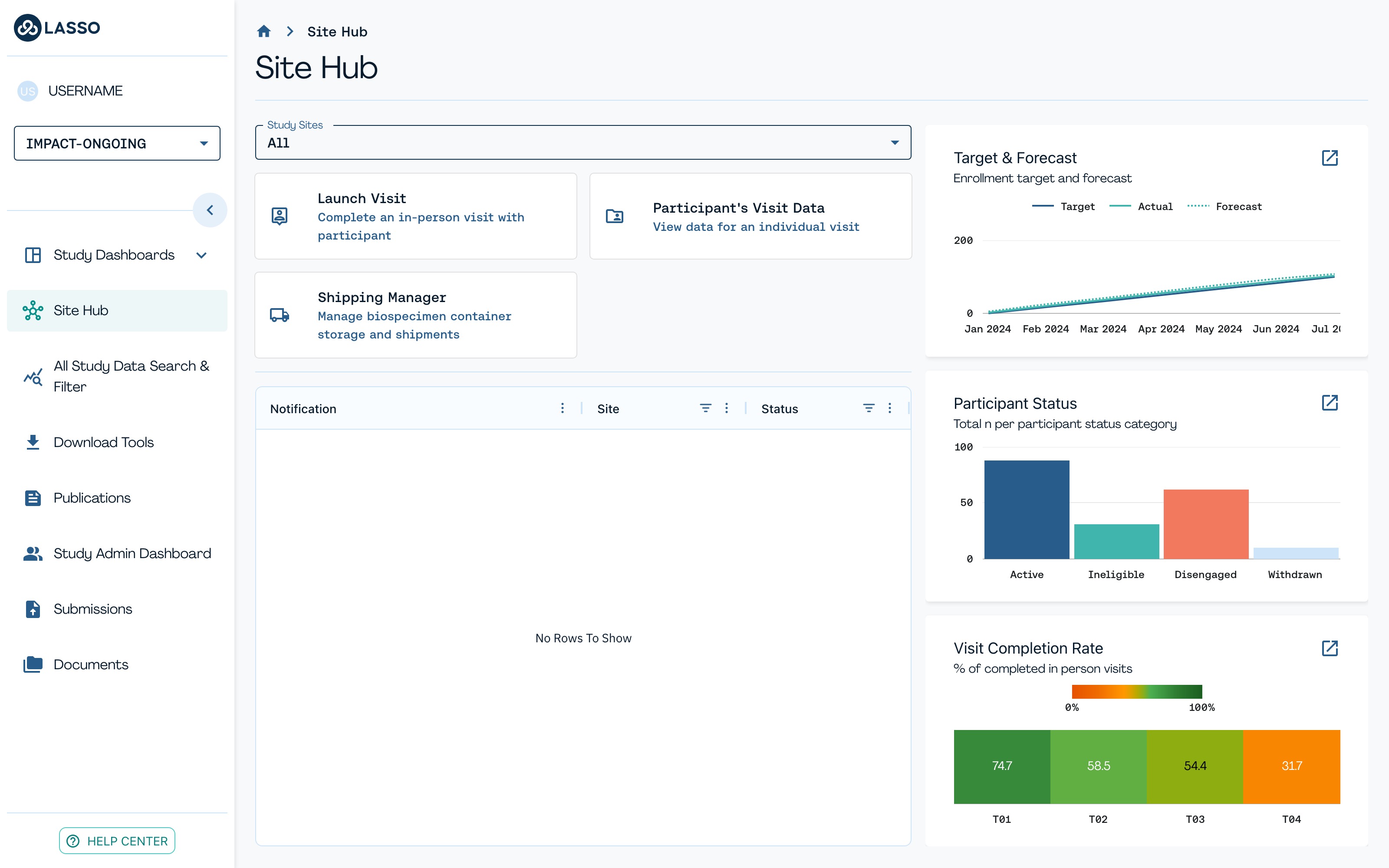
You will then land on the QR code scanner. Scan the unique code generated for the participant when the visit was scheduled. If a scanner isn't available, use Manually Enter Code.
STEP 2 - Confirm Visit Details#
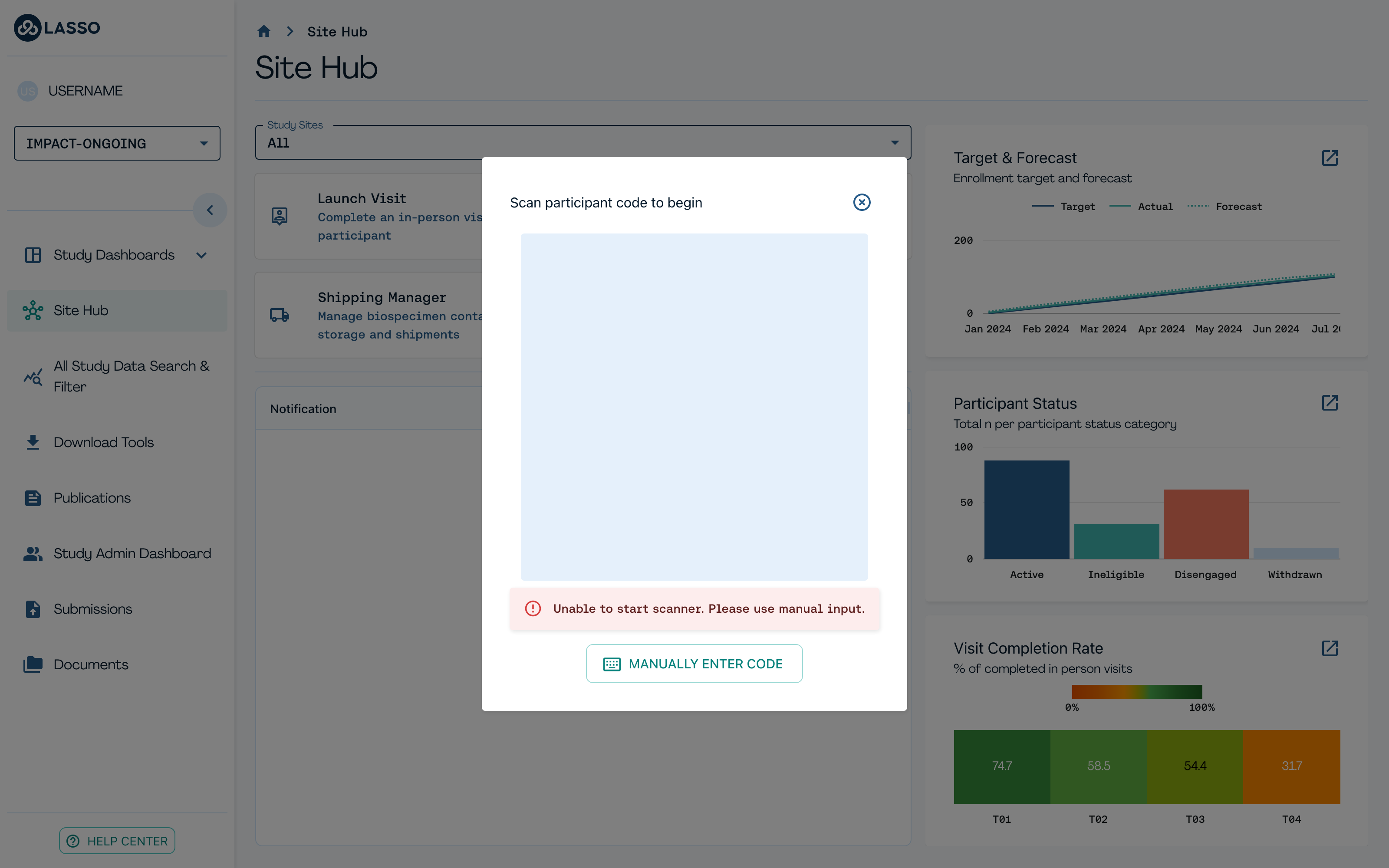
After you scan the QR code, a Confirm visit details pop-up shows the Participant ID, Visit, Study, and Name. This is to confirm that you are be entering data into the correct Participant’s Profile - please review carefully.

STEP 3 - Visit Overview#
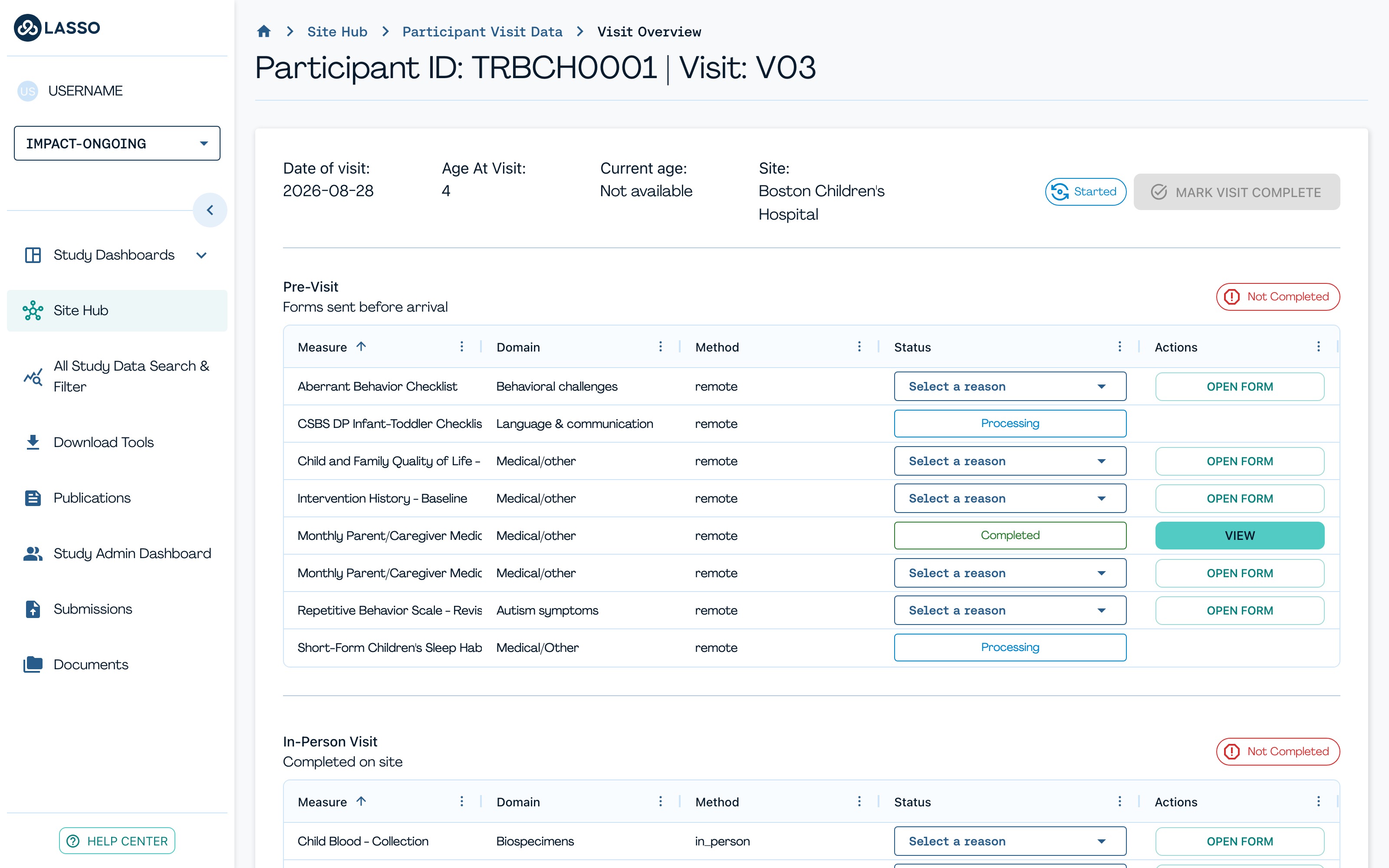
The Visit Overview page follows the the flow of the visit itself:
- Pre-Visit tasks (top): forms sent prior to in-person visit.
- In-Person Visit tasks (middle): forms and measures to be completed on site.
- Post-Visit tasks (bottom): forms sent after the visit for follow-up or require staff to complete.
Each row is a measure: a specific questionnaire or task, with:
- Domain: the research domain the measure belongs to.
- Method: how the measure is administered, for example in-person or remote.
- Status: including reasons why a measure could not be administered or completed.
- Actions: a link that takes you to the questionnaire.
By the end of the visit, every required measure is either Completed or has a clear, documented reason why not.
STEP 4 - Data Entry#
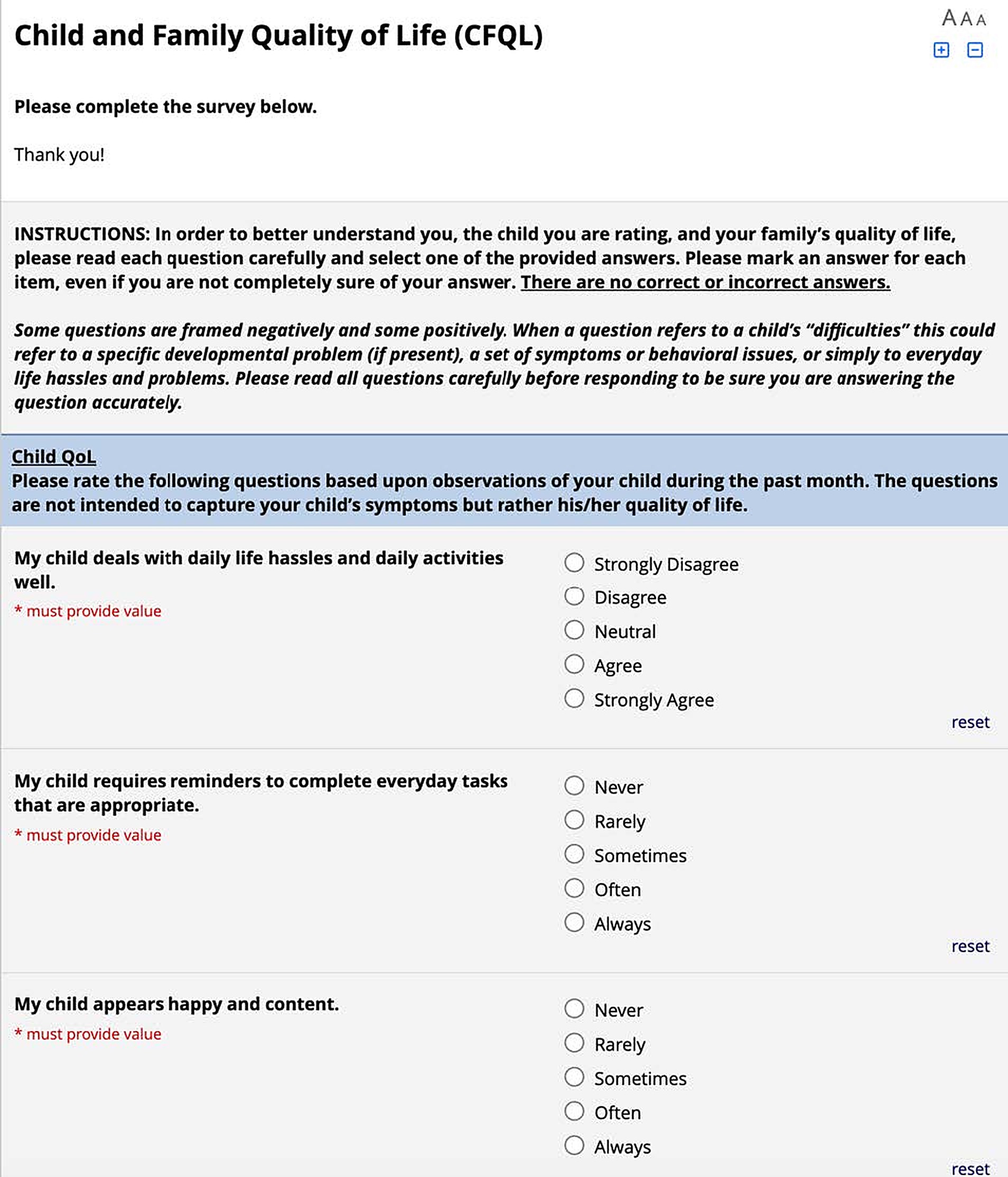
Click Open Form next to any measure to complete data entry for that measure.
STEP 5 - Recording Status#
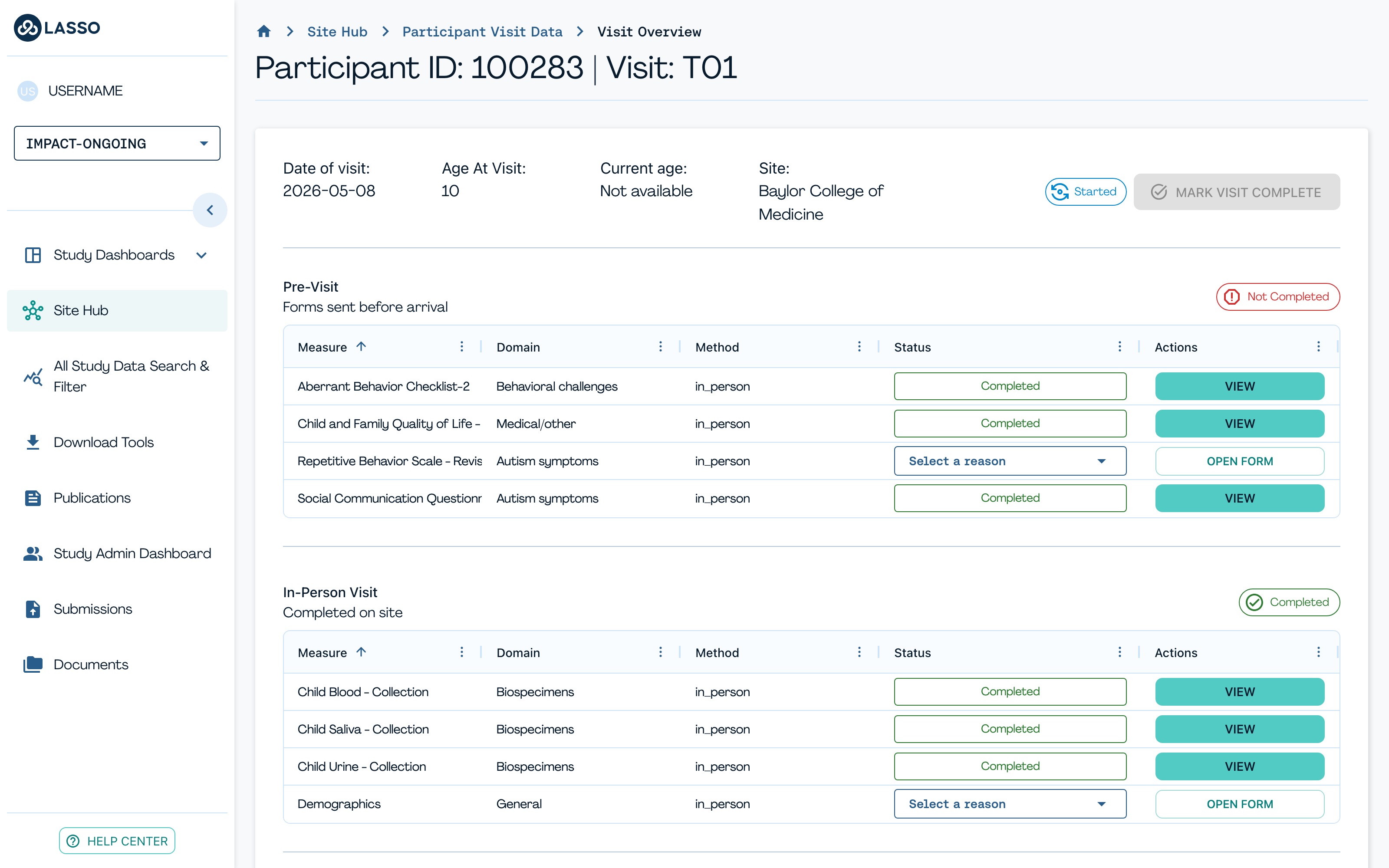
As you work through the visit, you will see two status types:
- Processing: the questionnaire is complete but the scoring workflow is running in the background.
- Completed: data entry is done.
- Not Completed: the participant couldn't complete the measure, and you must document why.
Use the Status dropdown to select the reason. If you choose Other Reason, an open text box appears: please write a short, clear explanation. The DCC and data governance teams will see it.
Note: once you document why a form was missed, you lose the ability to re-open that form. Please only record a reason for missingness if the form is truly missing, with no chance the participant can still complete it.
STEP 6 - Mark Visit Complete#
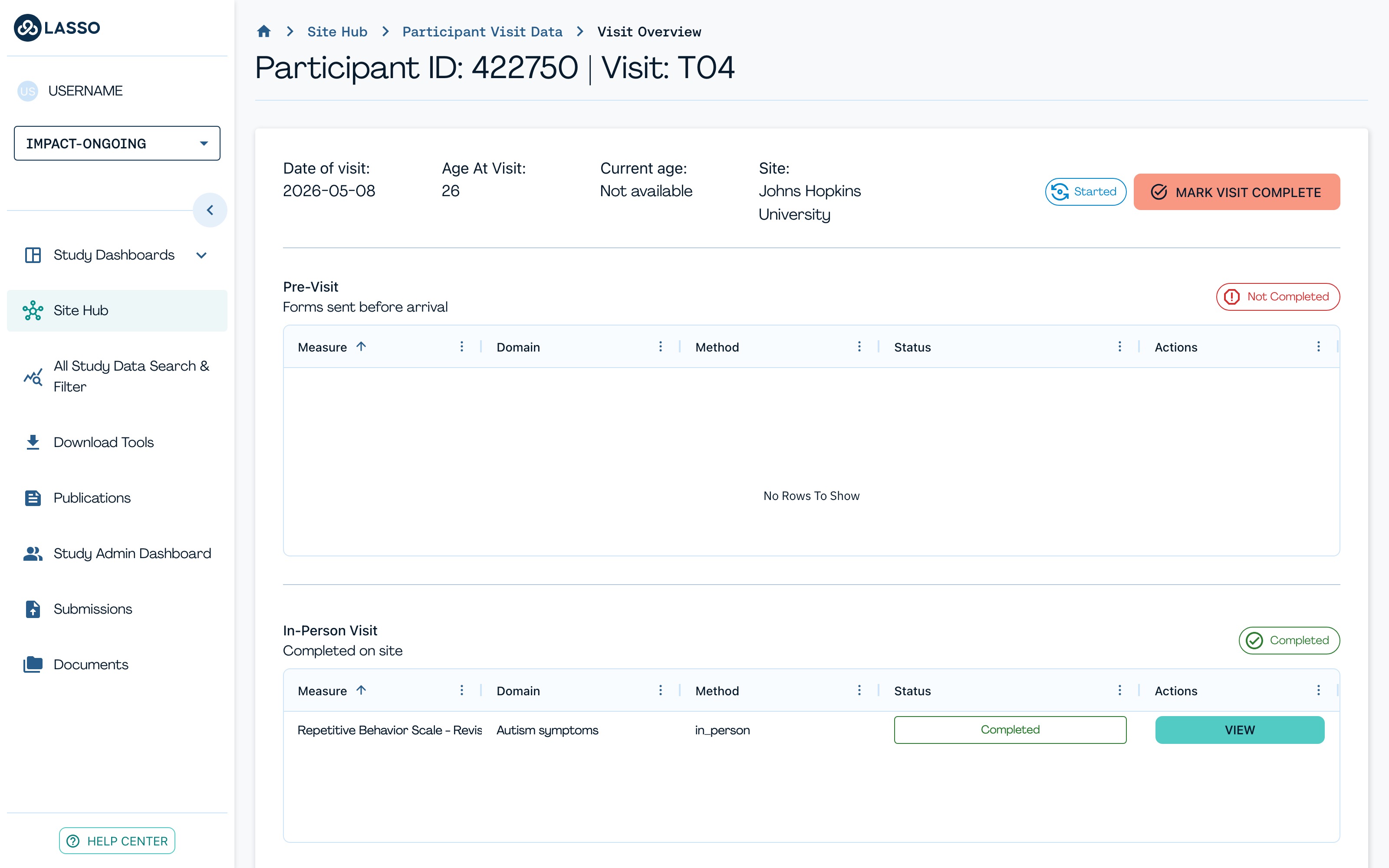
Once every required measure is either completed or has a documented reason, click Mark Visit Complete at the top right of the Visit Overview page. The visit status and the Visit Completion Rate on the Site Dashboard and the Progression Hub will now be updated to reflect the new completion.
Participant's Visit Data Table#
The participant visit table lets you look up any participant and check what's scheduled, started, or completed. From the Site Dashboard, click the Participant's Visit Data Table tile.
| Use this table for planning: • Who needs to be scheduled? • Who has missed visits? • Where should you focus outreach this week? |
STEP 1 - Navigate the Participant Visit Data Dashboard#
From the Site Dashboard, click the Participant's Visit Data tile.
STEP 2 - What can I do here?#
- Search or filter by Participant ID, center or site name, cohort, or visit.
- Users can access the LaunchPad for a specific participant and view any visits they are interested in.
- Filter by Visit Status using the dropdown. For example, show only Missed Visit and Not Started.
- Use the Actions menu to drill into a specific visit.
STEP 3 - How can I view participant responses and scores?#
- Locate the participant's ID using the dashboard search.
- Open the participant's profile.
- Find the relevant measure.
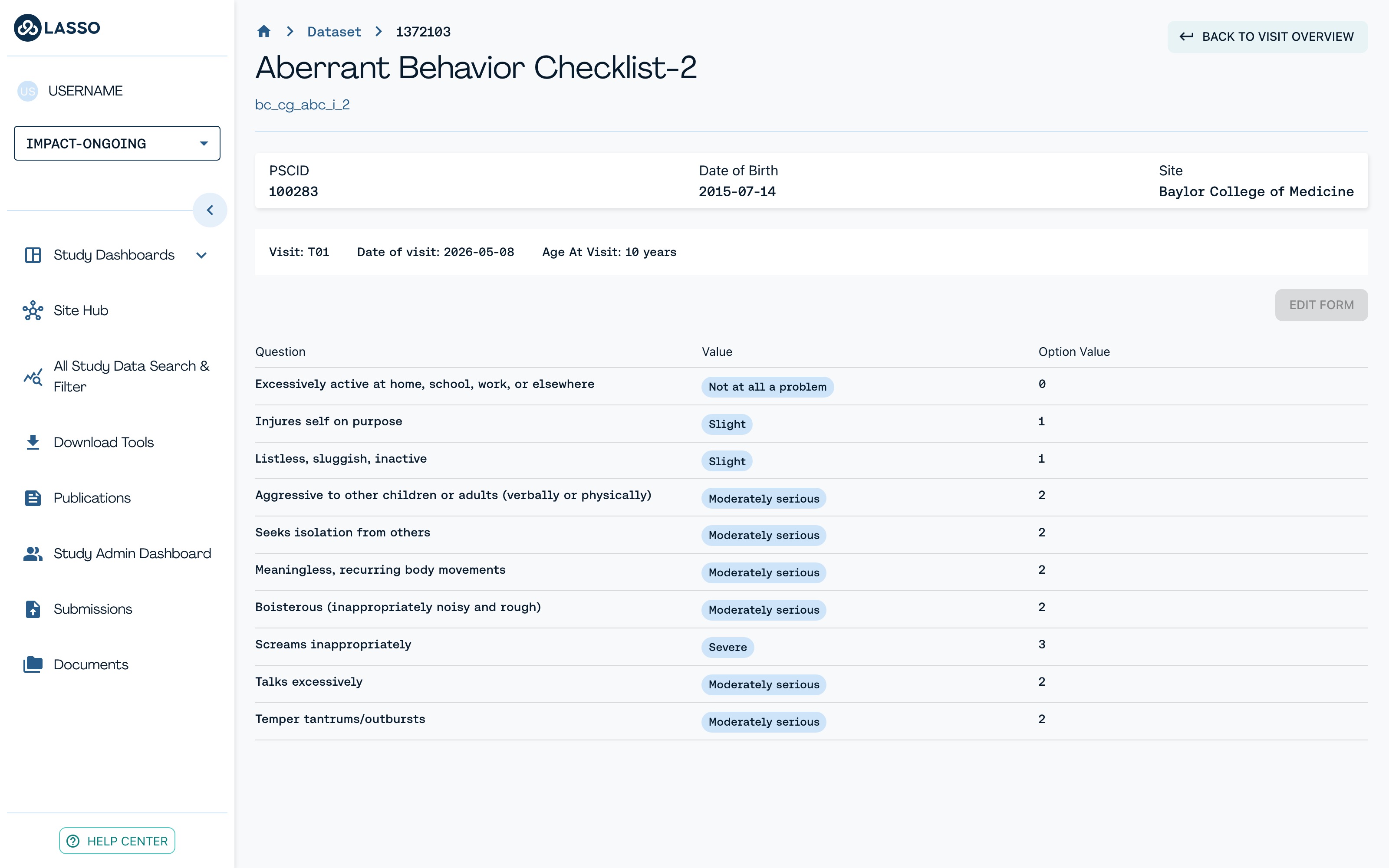
- Click View next to the measure.
- Review the questionnaire summary, including submitted responses and calculated scores.
Quick Reference Summary#
End-to-end path for a single visit:
- Open Site Dashboard, Launch Visit.
- Scan the participant's QR code, or manually enter the code.
- Confirm visit details. Cancel and re-scan if anything doesn't match.
- Work through the Visit Overview: Pre-Visit, In-Person Visit, then Post-Visit measures.
- Open each form and complete data entry, or record a reason if not completed.
- Click Mark Visit Complete once every measure is completed or has a documented reason why not.
To look up a participant instead of starting a new visit:
- Open Site Dashboard, then click Participant's Visit Data.
- Search or filter by ID, site, cohort, visit, or status.
- Use the Actions menu or View next to a measure to see details, responses, and scores.