Data Query Tools
Tools under All Study Data Search & Filter to pull data from Lasso for analysis.
- Data Wrangler: pulls whole instruments or tables, ready to use as a spreadsheet.
- Dictionary Query Tool: pulls only the specific variables you pick, along with a dictionary that explains them.
Data Wrangler#
Use the Data Wrangler tool when you want to explore complete instruments or tables at a summary level. It is ideal for reviewing available measures and sessions, checking data availability, and conducting initial exploratory analysis.
STEP 1 - Accessing the Data Wrangler#
- Go to the
All Study Data Search & Filteroption from the navigation menu on the left. - Find the
Query Wizardbutton in the top-right corner.
STEP 2 - Building a Dataset#
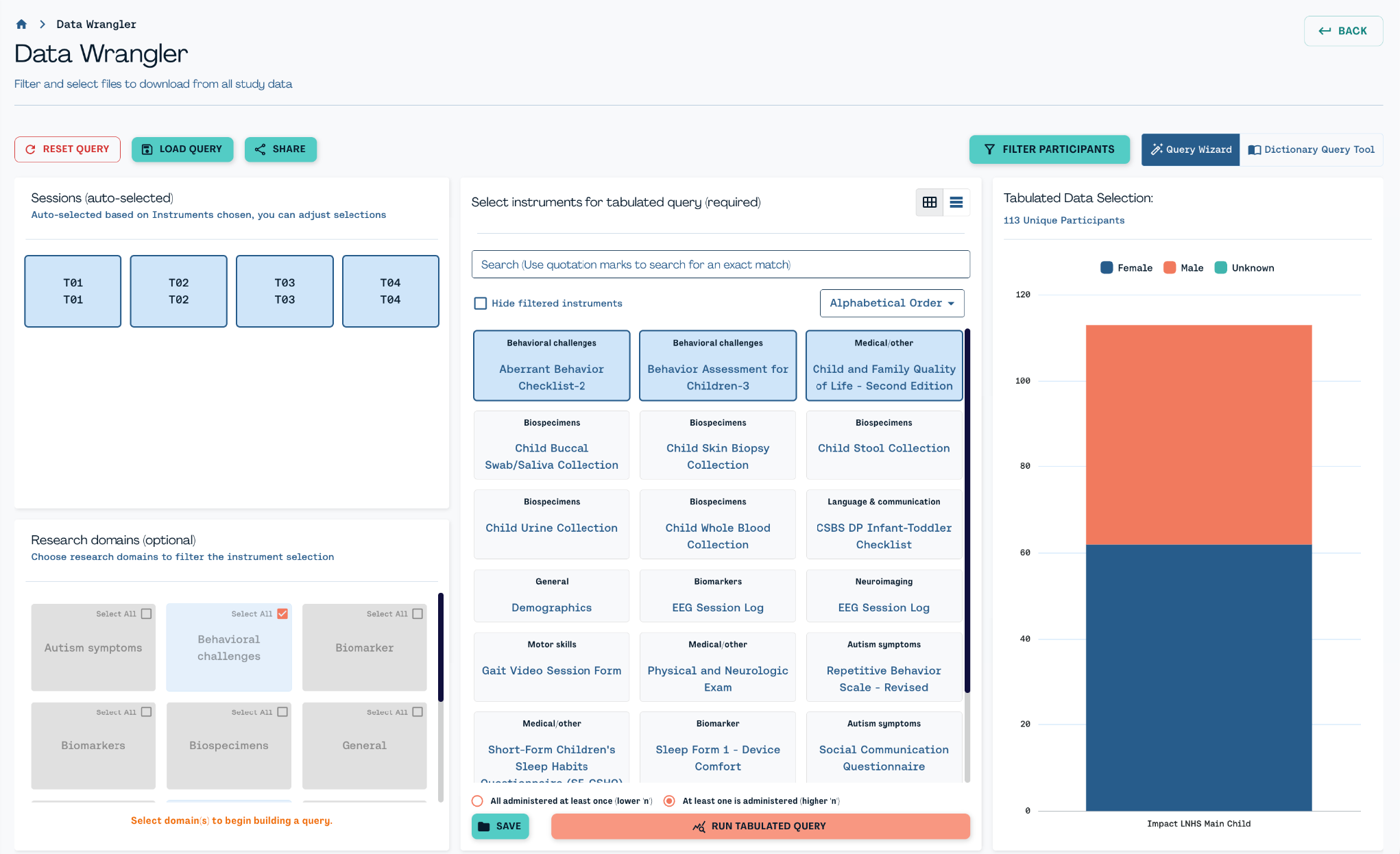
Select the measures or instruments you are interested in. All sessions are auto-selected based on your instrument selection, but you can unselect them as needed.
Selection Options#
- Filter by Research Domain
If you would like to use the research domain filter, do this before selecting an instrument. First choose a research domain then select the sessions of interest. The available instruments will appear in light blue and can be selected as part of your query. - Participant Subset Filter
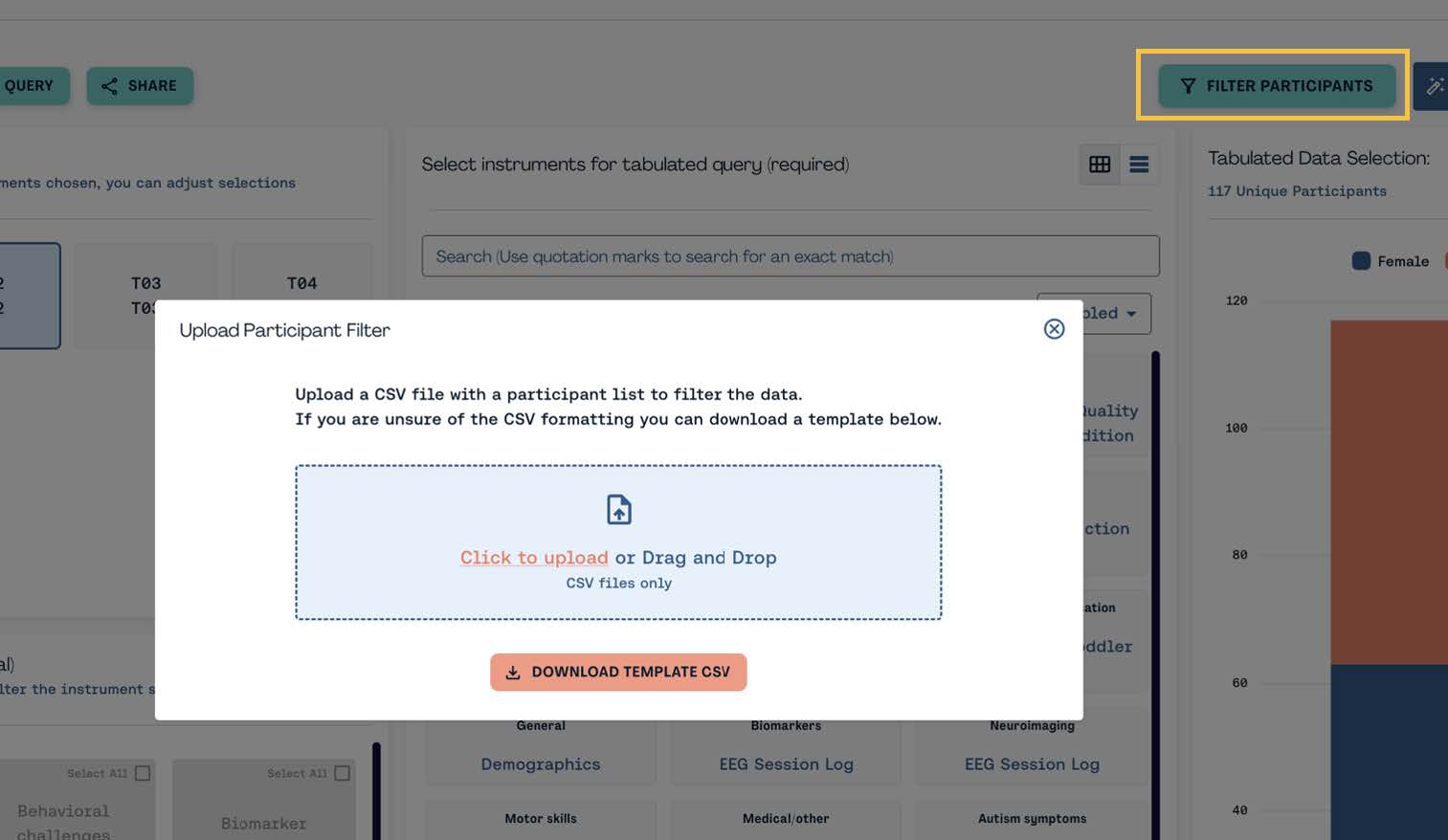
You can also narrow your query results to a subset of participants. For example, you may wish to see only those who were part of a specific sub-study, whose data were used in a published paper, those flagged for follow-up, or simply to view participant data from your specific site. You can do this by uploading a list of participant IDs with the Participant Subset Filter tool.
Display Options#
-
Grid or List
Use the view toggle in the top-right corner of the instrument screen to switch between grid and list layouts. You can also use the search bar to quickly find the instrument you're looking for. -
Sorting and Filtering
- Alphabetical: sort the instruments A to Z.
- Selected: view only instruments you've already chosen.
- Enabled: show instruments that apply to your current selections.
- Disabled: highlight instruments that don't match your filters.
- Hide filtered instruments: remove irrelevant items to keep your view focused.
Apply Filters with AND/OR Logic#
- All selected administered at least once, lower n (AND logic): produces a smaller dataset containing only overlapping responses.
- At least one of the selected is administered, higher n (OR logic): includes any session where one or more selected variables were administered.
STEP 3 - Run Tabulated Query & Save#
Once you have selected all required data parameters and built your query, click Run Tabulated Query. This sends your query to LassoSAFE to run the analysis.
You can also save the query you just built. This lets you reload the same query later when you need updated data. Once a saved query is loaded, click Run Tabulated Query to send the query results to LassoSAFE.
STEP 4 - Load Query#
Click Load Query to access any queries you have saved previously.
Dictionary Query Tool#
Use this tool when you want specific variables, rather than entire forms (e.g., total scores, key covariates, and the demographics needed for modelling). The Dictionary Query Tool will produce a custom CSV with only the variables you have selected, as well as a data dictionary that explains them.
STEP 1 - Accessing the Dictionary Query Tool#
- Click the
All Study Data Search & Filtermenu option. - Find the
Dictionary Query Toolin the top-right corner of your screen.
STEP 2 - Building a Dataset#
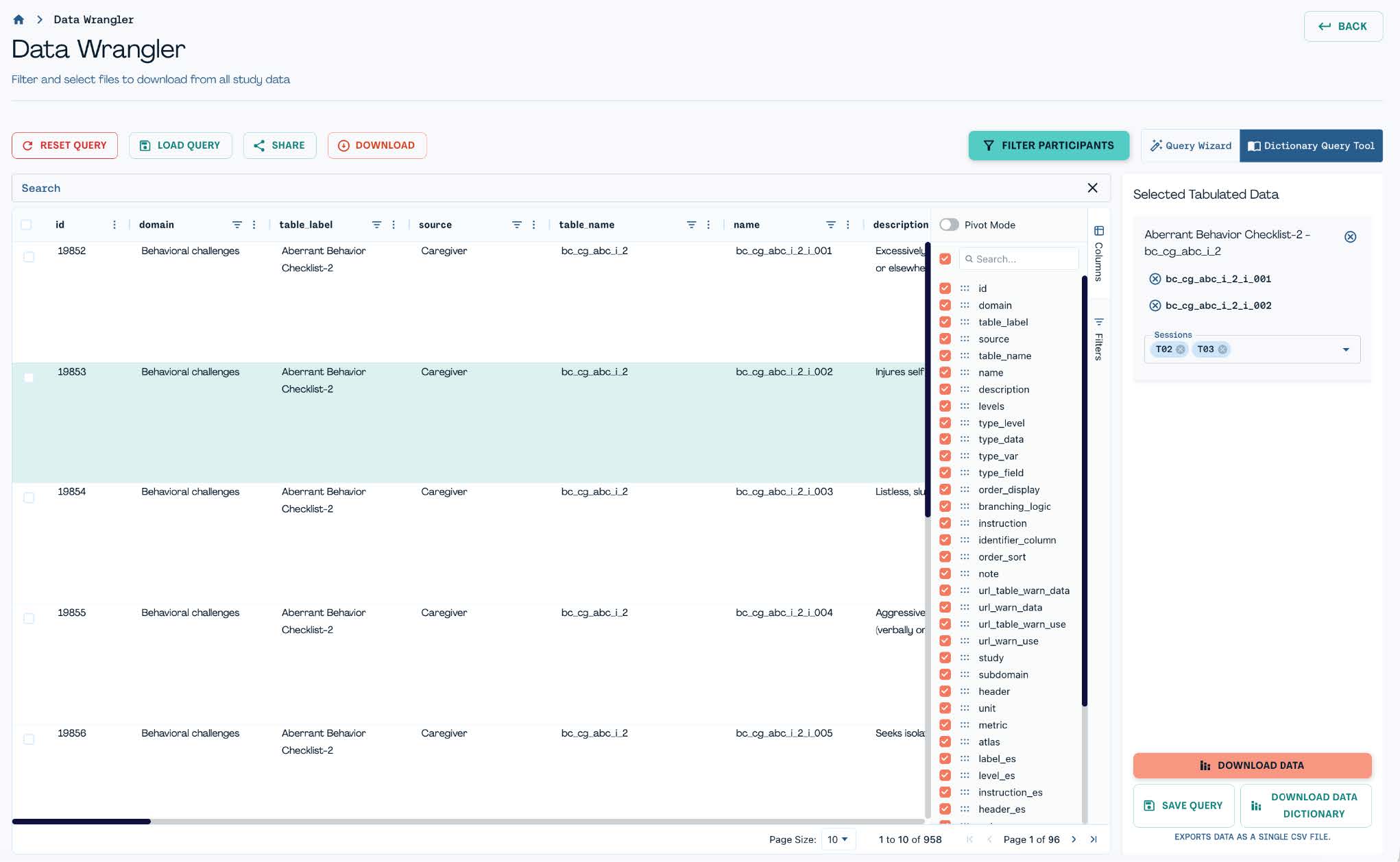
- Search for the variable of interest using the search bar or the column filters.
- Drag your selected variables into the
Selected Tabulated Databox on the right. - Click
Download Data Dictionaryto get a CSV file describing the selected variables.
STEP 3 - Explore and Filter Variables#
- Use column-level filters to locate specific variables of interest.
- Filter by domain, table name, source and more.
STEP 4 - Participant Subset Filter#
As with the Data Wrangler, you can narrow your results to only the participants you wish to see by uploading a list of participant IDs with the Participant Subset Filter tool.
STEP 5 - Save Query#
Save the query you just built so you can easily reload it later when you need updated data. Once the saved query is loaded, click Run Tabulated Query to transfer the results of the query to LassoSAFE.
STEP 6 - Load Query#
Click Load Query to access any queries you've saved previously, from either the Data Wrangler or the Dictionary Query Tool.
Quick Reference Summary#
When to use each tool:
- Data Wrangler: whole instruments or tables, for a site-level check or an initial exploratory pull.
- Dictionary Query Tool: a handful of specific variables, for modelling or a focused analysis, plus the dictionary that explains them.
Both tools work similarly:
- Select your measures, instruments or variables of interest.
- Narrow the results with a research domain filter or a participant subset upload.
- Run the query to analyze it in LassoSAFE.
- Save the query so you can reload it and pull updated data later.